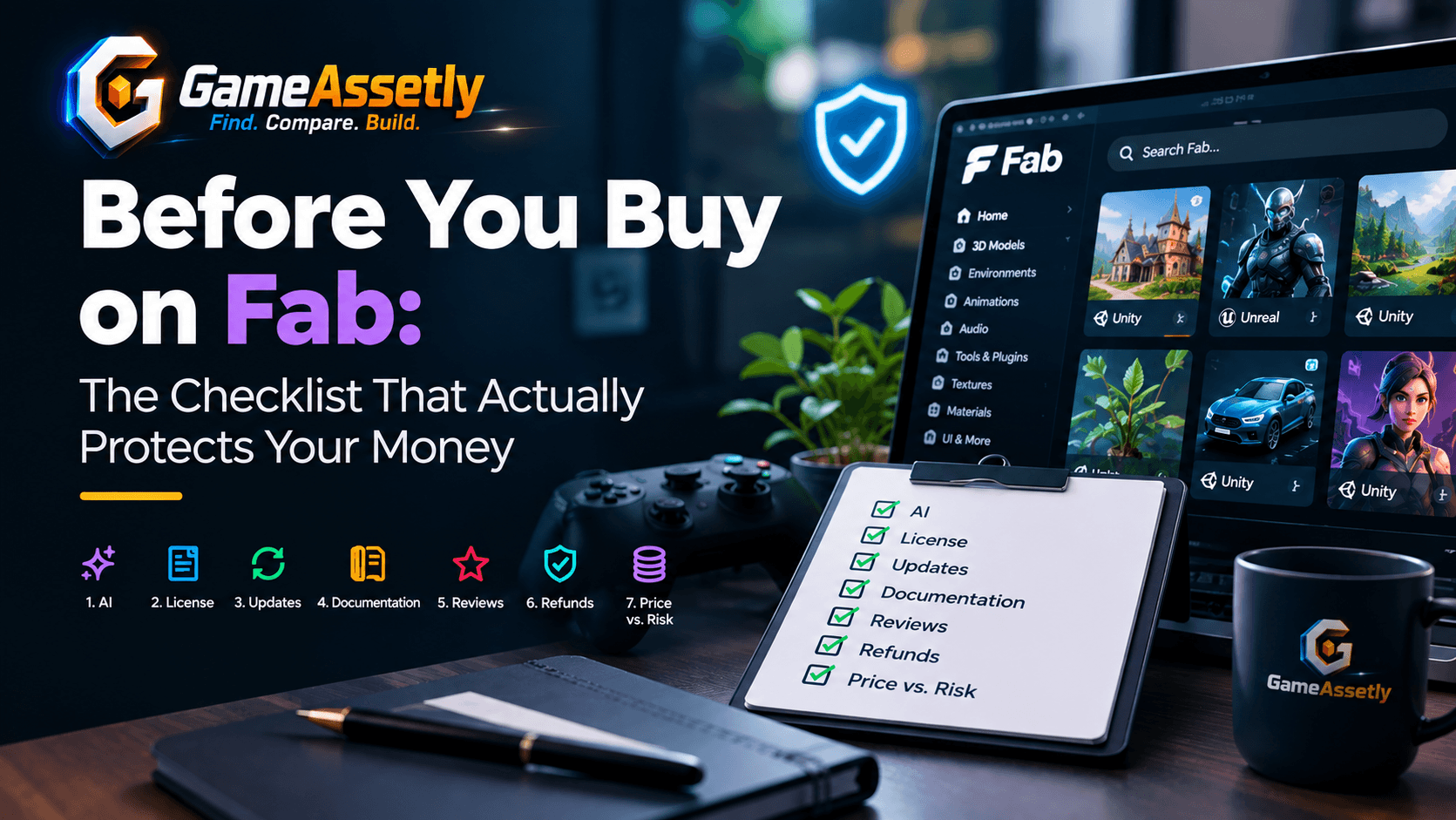
Before You Buy on Fab: The Checklist That Actually Protects Your Money
Quick Summary
Fab is huge, and that is both its strength and its problem. Between genuinely excellent tools and a growing pile of low-effort listings, it can be hard to tell which asset is safe to build a project on. This guide gives you a seven-step check you can run in about five minutes before you click Buy.
The short version:
- AI: Read the “Generated with AI” and “Allows usage with AI” fields on the listing, then check whether the screenshots and description look consistent with them.
- License: Know which license you are selecting and read the license terms before paying, not after.
- Updates: Check the last update date, the changelog, and which engine versions are supported.
- Documentation: A real asset has docs, a demo or example project, and a place to ask for help.
- Reviews: Read the three-star and recent reviews first. They are the most honest.
- Refunds: Fab’s refund rules are narrower than most people assume, so do your checking before you download anything.
- Price vs. risk: A cheap asset that breaks your project costs more than an expensive one that works.
If you only remember one thing: the cheapest time to find a problem is before you buy.
Why This Checklist Exists
A common complaint from developers is that buying a marketplace asset has started to feel like a gamble. Plugins that look polished in the gallery turn out to be thin. Listings that don’t make clear how much of the asset was produced with generative AI. Support that goes quiet the moment a purchase is made. And a refund process that is stricter than people expect.
None of this means Fab is a bad place to shop. It has plenty of tools worth paying for. It means the burden of due diligence sits with the buyer, and most buyers skip it because the listing page makes it so easy to click through.
This guide is not a list of the best assets. It is a way to evaluate any asset, including ones we have never reviewed.
Step 1: Check the AI Disclosure Fields
Every Fab listing has a details section near the bottom of the sidebar. On a typical listing you will see an age rating, “Allows usage with AI” and “Generated with AI”, each answered Yes or No.
These fields exist for a reason. After a wave of mass-uploaded, AI-generated content hit the marketplace, Epic said it would require creators to declare during publishing whether an asset was made with generative AI, while also confirming that AI-generated work stays on the platform. In other words, AI content is allowed. What you are entitled to is knowing about it.
How to read the fields
- Generated with AI: Yes. Not automatically bad, but it changes what you should expect. Look harder at quality, consistency, and whether the seller actually supports the product.
- Generated with AI: No. Good, but it is a self-declaration. Cross-check it against what you see in the gallery.
- Allows usage with AI. This tells you whether the seller permits the asset to be used with AI tools. If you plan to feed assets into any AI workflow, read the license terms for the exact wording.
Quick sanity checks beyond the checkbox
The checkbox only helps if it is honest, so look for signs that the listing is not:
- Gallery images that all look suspiciously similar in style, lighting, or composition
- A description full of vague promises but no specifics about how the system works
- No demo, no video, no documentation link
- A seller profile with dozens of new listings published in a very short period
- Screenshots that show a finished look but never show the asset inside an actual editor
One or two of these is not proof of anything. Three or four together is a reason to walk away.
Step 2: Understand the License Before You Pay
License confusion is one of the most avoidable problems. Many people assume that buying an asset means they can do whatever they like with it. That is not how it works.
Before purchasing, check:
- Which license tier you are selecting. Listings can offer different license options, and the right one depends on how you use the asset. A hobby project and a commercial release may not be covered by the same choice.
- The license terms link. It is on the listing page. Open it. It takes two minutes.
- What the license says about redistribution. If your game ships the asset’s files to players, make sure that is covered.
- Team use. If more than one person on your team needs access, confirm how the license handles that.
- Engine compatibility. Some listings are for a specific engine or format. Check the “Included formats” section so you are not buying something you cannot open.
If the license terms are missing, unclear, or contradict the description, treat that as a serious red flag.
Step 3: Check How Alive the Asset Is
Code-based tools age fast. A plugin that has not been touched in two years may still work, or it may break the moment you open your project in a newer engine version. You will not know until it is too late.
Look at:
- Last update date. Recent is better, but what matters is whether the update cadence matches the engine’s release cadence.
- The changelog. A real changelog tells you the seller is actually working on the product. An empty one on a years-old listing tells you the opposite.
- Supported engine versions. Make sure your version is on the list, not just “close enough.”
- Published date versus last update. An asset published years ago and never touched is a different bet from one that has been maintained the whole time.
A useful example: Easy Multi Save, a popular save and load system for Unreal Engine, states in its listing that it has had ongoing support and updates since 2018. That kind of long track record is exactly what you want to see for a tool you will build your whole save architecture on.
Step 4: Look for Documentation and Support
This is where weak listings fall apart. A good asset makes it easy to get started and easy to get unstuck.
Signs of a well-supported asset:
- Written documentation, not just a feature list
- A playable demo you can try before buying
- An example project you can open and read
- A preview video that shows the tool actually running
- A support channel, such as a Discord server or a documented contact method
- Seller replies on reviews and questions
Easy Multi Save 👉 [Read our full Easy Multi Save Review & Verdict on GameAssetly] again makes a good model here. Its listing links to a playable demo, a preview video, documentation, an example project, and a Discord support server. You can verify a lot about the product before spending anything.
Now compare that to a listing with three screenshots and a paragraph of marketing copy. If the seller will not show you how the product works, assume the product does not work as well as the screenshots suggest.
Step 5: Read Reviews the Smart Way
A 4.9 average sounds great, but the number alone tells you very little. Here is how to get real information from reviews.
- Read the three-star reviews first. Five-star reviews are often written the day someone installs the product. One-star reviews can be about shipping a problem the seller did not cause. Three-star reviews tend to be balanced and specific.
- Sort by most recent. An asset that was great two years ago may not be great today.
- Look for patterns. One complaint about performance is an opinion. Five complaints about the same bug is a fact.
- Check how the seller responds. Calm, specific replies are a good sign. Defensive or missing replies are not.
- Weigh the review count. A 4.9 from 221 ratings carries far more weight than a 5.0 from six.
Also check whether reviews mention the things you care about, like your engine version, your platform, or your type of project.
Step 6: Know the Refund Rules Before You Need Them
This is the step most buyers learn the hard way. Fab’s refund policy is clear, but it is narrower than a lot of people assume.
According to the Fab Refund Policy, a product can be refunded in these cases:
- Within 14 days of purchase if the product has never been downloaded
- The product does not match the description on Fab
- The seller approves a refund in good faith, for example when technical issues stop you from using it as advertised
- Epic decides in its sole discretion that a refund is warranted
The policy also says you may lose eligibility if Epic determines you are abusing it.
What this means in practice
The first route is the simple one, but it closes the moment you download. And you usually need to download an asset to find out whether it works. That leaves the other routes, which all depend on proving a mismatch with the description, or on the seller or Epic agreeing with you.
That is why pre-purchase checking matters so much. It is also why screenshots, notes, and test results are worth keeping if something goes wrong.
If you need to request a refund
- Refund requests go through Fab Support.
- If the problem is with the product itself, the policy says to contact the seller before contacting Fab Support.
- Approved refunds are meant to be processed within about two business days, though the time it takes to reach you depends on your payment method.
- If a refund cannot go back to the original payment method, it may be issued as Epic Wallet credit.
Practical habits that help:
- Save the listing description and screenshots on the day you buy, so you can show what was promised.
- Test the asset in a clean, empty project first, not inside your main one.
- Write down exactly what failed, in which engine version, and what you tried.
- Message the seller first and keep the conversation polite and specific.
If you are in the EU or another region with consumer protection law, your statutory rights may add to the platform policy. Check the rules that apply where you live.
Step 7: Match the Price to the Risk
Price is not the same as value. A cheap asset can be very expensive if it eats a week of your time. Use this simple way of thinking about it:
- Low price, low dependency. A prop, a texture, or a small utility. If it fails, you replace it. A quick check is enough.
- Mid price, moderate dependency. A UI kit or a gameplay module. Run the full checklist.
- Any price, deep dependency. Save systems, networking, AI, inventory, anything your game will be built around. Spend the most time here. Replacing these later is painful.
The more your project depends on an asset, the more it matters that the seller is still around next year.
The Five-Minute Scorecard
Give each line one point if it passes. Zero if it fails or you cannot tell.
| Check | Pass? |
|---|---|
| AI fields are filled in and match what you see in the gallery | 1 / 0 |
| License tier and terms are clear and fit your use | 1 / 0 |
| Updated recently, with a real changelog | 1 / 0 |
| Your engine version is supported | 1 / 0 |
| Documentation exists | 1 / 0 |
| Demo, video, or example project exists | 1 / 0 |
| A support channel exists and the seller responds | 1 / 0 |
| Recent reviews are positive, with no repeated serious complaint | 1 / 0 |
How to read your score:
- 7 to 8: Safe to buy.
- 5 to 6: Probably fine for low-risk assets. Be careful for anything your project depends on.
- Below 5: Skip it, or wait until the seller fixes the gaps.
🚩 Red Flags That Should Stop You
- No documentation and no demo
- AI disclosure that contradicts the gallery or the description
- A changelog that has been empty for years
- Reviews that repeat the same unresolved bug
- A seller who never replies
- License terms that are missing or unclear
- A description that lists features but never explains how to use them
- A price that is far below comparable tools with no explanation
Frequently Asked Questions
Does “Generated with AI: Yes” mean I should avoid an asset?
Not automatically. It means you should look more closely at quality, support, and consistency. Epic has said AI-generated work is allowed on Fab, so the point is informed buying, not blanket avoidance.
Can I get a refund after I download an asset?
Possibly, but not through the simple 14-day route. Once you have downloaded it, you generally need one of the other grounds, such as the product not matching its description, or the seller or Epic agreeing to a refund.
Should I contact the seller or Fab Support first?
If the issue is with the product, the refund policy says to contact the seller before Fab Support.
How do I know whether an asset will work with my engine version?
Check the supported versions on the listing and the changelog. If your exact version is not mentioned, ask the seller before buying.
What is the most important thing to check for a plugin?
Updates and support. A plugin that is not maintained will eventually break, and you will have nobody to ask for help.
Is a high rating enough to trust an asset?
No. Read recent reviews, especially the middle ones, and look at how many ratings the score is based on.
Final Thoughts
Buying assets is supposed to save you time. A few minutes of checking before you pay is what makes that true. Look at the AI fields, read the license, check the update history, confirm the docs and support exist, read the honest reviews, and know the refund rules before you need them.
Do that, and most bad purchases simply never happen.

2 Comments